Accessible hyperlinks help users understand the purpose and destination of each link so they can decide whether they want to follow it. Whenever possible, link text should identify where the link will go without the need for additional context.
Ensure link text is meaningful and descriptive, indicating the purpose or destination of the link. Avoid using vague terms like “click here” or “read more.”
Example: Use “Download the annual report” instead of “Click here.”
The link text should make sense out of context. Users navigating via screen readers often jump from link to link.
Example: “Learn more about our accessibility policy” provides clear context.
Long URLs can be confusing and difficult to read, especially for screen readers. Instead, use a descriptive phrase that represents the link’s destination.
Example: Instead of “https://www.statelibraryofiowa.gov” use “State Library of Iowa website.”
Ensure hyperlinks are visually distinct from regular text. Typically, links are automatically underlined and in a different color on most website platforms. Avoid removing the underline unless another visual cue is provided other than color.
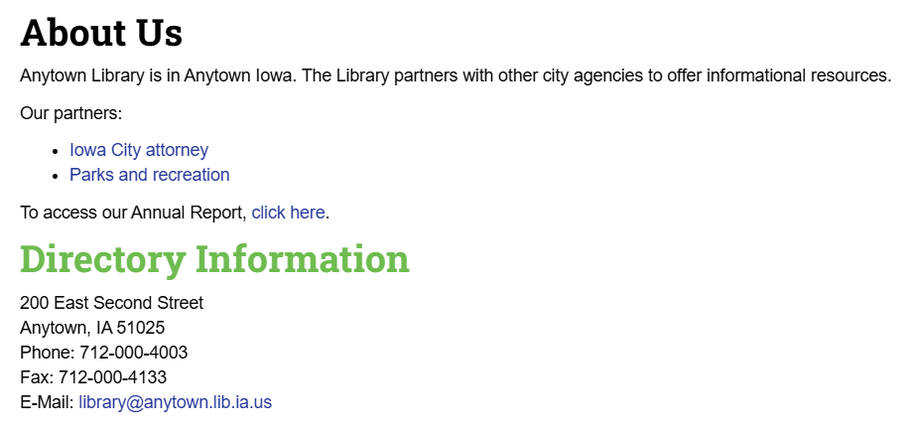
In the screenshot of a PLOW website “About Us” webpage above, three hyperlink examples are shown:
The first link describes the destination where the user will go: “Iowa City attorney.” This link clearly tells all users, including screen reader users, where they will go if they click the link.
The second link provides context (“Parks and recreation:”) followed by a long URL linked to the destination. Screen readers will read the entire URL to users, and the link itself lacks context without the text that comes before it.
The third link tells users to access the Annual Report “click here.” Users that jump from link to link with accessible technology have no idea where “click here” will take them.
How to Link Text in Concrete5
Click on the text content block and choose Edit Block.
Highlight the text you want to link and select the chain icon in the editing toolbar, or use the keyboard shortcut Ctrl+K.
Copy the link destination URL and paste it in the URL field of the Link window. Click OK to exit the Link window, then publish changes.